


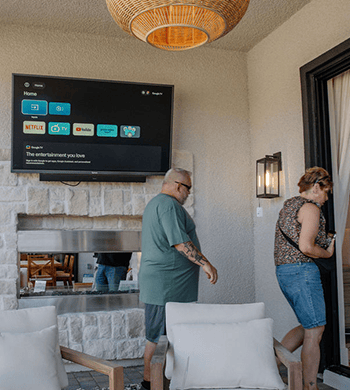

When casting to a TV is unstable, start by checking the local connection path before buying equipment or opening walls. Confirm that the phone, tablet, or computer and the TV support compatible casting features and can see each other on the intended local network. Then test placement: controller location, TV location, router or mesh-node location, walls, doors, and interference. Only after these checks should you decide whether coverage changes or a wired connection are justified.The goal is to identify where the casting connection breaks down before changing equipment or rewiring the patio. For a broader installation sequence covering network choice, HDMI, ARC/eARC, and sound, see the outdoor TV connectivity and audio planning guide.
Identify the failure before changing the network
"Casting is unstable"can describe different problems. Write down which one actually occurs:
- The TV does not appear in the list of available devices.
- The TV appears, but the connection fails.
- Playback starts and then buffers.
- Playback stops when the phone moves or locks.
- The TV changes networks or disappears after a restart.
- One app fails while another works.
Each symptom points to a different check. If the TV never appears, start with device discovery; if playback buffers, check the connection path; if only one app fails, check that app first. Identifying the symptom helps you choose the next test instead of changing several parts of the setup at once.
Step 1: Confirm the feature and software path
Start with the casting method supported by your Sylvox outdoor TV model. Check the product page or manual to see whether casting is built in or uses an external streaming device, then confirm that the phone, tablet, or computer meets the app requirements. For a side-by-side view of available models, explore the Sylvox outdoor TV collection.Next, install current updates for the TV, phone or tablet, casting device, and relevant app, then restart each device. If an external streaming player is part of the setup, test it as a separate endpoint to distinguish a TV connection issue from a player or app issue.
Step 2: Put both devices on the intended local network
Check the network name shown on the TV and controller. A controller on a guest network may have internet access yet be unable to discover devices on the main network. Some routers isolate guest clients or separate devices through access-control settings. A virtual private network, privacy relay, cellular fallback, or work-device policy can also affect discovery.For a clean test:
- Disable cellular data on the controller temporarily.
- Pause VPN or privacy-routing software if policy allows.
- Join the controller and TV to the same intended local network.
- Reopen the app and scan for the TV.
If discovery works after this change, restore the settings one by one to find the setting that caused the issue if it does not, continue with the next check instead of resetting everything.
Step 3: Test the controller and TV positions separately
A patio setup has two wireless endpoints: the television and the device controlling it. Test both.Stand near the TV with the controller and attempt discovery and playback. Then move to the main seating area and repeat. If the connection changes when the controller moves, the seating-area coverage or handoff behavior matters. If the controller remains reliable but the TV drops, focus on the TV's path to the router or node.Repeat the test with exterior doors in their normal position. A test made through an open doorway may not represent everyday use. Exterior walls, masonry, metal, coated glass, grills, appliances, and even large groups of people can alter wireless conditions. Avoid judging the whole installation from the indoor signal bars on a phone.
Step 4: Check router or node placement
Look at the physical route between the TV and the router, access point, or mesh node. The nearest device by straight-line distance is not always the best path if dense materials sit between them.Temporarily move an existing node to a more open indoor position that still has a good upstream connection, then rerun the same casting test. Do not place a standard indoor router or mesh device outside unless its manufacturer rates it for that environment. Also avoid hiding wireless equipment behind metal objects or inside cabinets that impair ventilation or signal.Use this temporary move only as a test. If the change consistently improves casting, placement may be the first adjustment to make. If nothing changes, continue testing before purchasing another node.
Step 5: Separate internet performance from local casting
Some casting methods send a command to the TV, while others mirror or transmit content from the controller. Knowing which path your setup uses helps you interpret the symptom.Compare three observations:
- Can the TV play the same service through its own app?
- Can the controller play the content without casting?
- Can the devices discover each other and start a simple local cast?
If both devices stream normally on their own but cannot discover each other, focus on local-network visibility and protocol compatibility. If the TV's native app also buffers, investigate its connection to the network or the internet service. If only one app fails, check that service before changing the patio network.
Step 6: Run a controlled repeat test
Change only one variable at a time. Use the same content, approximate time, controller location, and TV location. Record:
- whether the TV appears in the cast list;
- time until playback starts;
- whether playback remains stable for a representative session;
- where the controller was located;
- which router or node served the area, if the network interface shows it;
- whether another household activity was using substantial bandwidth.
Test long enough to reflect the real problem. If dropouts occur mainly during busy evening hours, run at least one test then.
Step 7: Decide whether infrastructure changes are warranted
Rewiring or adding an access point becomes a reasonable next step when repeated tests show that the existing path cannot maintain the required connection and simpler placement or configuration changes do not solve it. Preserve outdoor safety and code compliance: exterior cable routes, penetrations, surge protection, power, and weather-exposed hardware should be selected and installed for the location. Once you have isolated the cause, you can choose the network setup that best supports your Sylvox outdoor TV without paying for hardware you may not need.Once the failure pattern is clear, use the evidence from these tests—distance: obstructions, location sensitivity, and when dropouts occur—to choose among mesh Wi‑Fi, an outdoor access point, and Ethernet. For a broader comparison of these options, see theoutdoor TV network options guide.
Quick casting stability checklist
- Confirm that the TV and controller support the same casting method.
- Update and restart the TV, controller, app, and external player if used.
- Put both endpoints on the intended local network.
- Check guest-network isolation, VPNs, cellular fallback, and access controls.
- Test next to the TV and from the main seating area.
- Repeat with doors and obstacles in normal positions.
- Temporarily adjust an existing router or node location.
- Compare TV-native playback, controller playback, and casting.
- Change one variable at a time and record the result.
- Consider new infrastructure only after the failure pattern is repeatable.
Final takeaway
For Sylvox outdoor TV owners, most casting issues can be narrowed down without immediately replacing equipment or rewiring the patio. Test one variable at a time, then use the results to decide whether a placement change, stronger outdoor coverage, or Ethernet is the most practical next step.


Leave a comment